The AI IDE Wars: Why Cursor is More Than Just a VS Code Clone ⚔️
While VS Code maintains its massive lead due to its flexibility, community support, and vast extension ecosystem, Cursor’s strategy of forking the core and baking in AI has created a fundamentally different product experience. It moves from being an editor with an AI feature to an AI system that edits code.
The “AI-First” Philosophy: Most developers use tools like Copilot or ChatGPT as adjuncts—copying code out, prompting, and pasting back in. Cursor eliminates this cognitive friction. 🔹 “System Prompting:” When you ask Cursor to write a function or fix a bug, the system automatically feeds the AI model crucial context, including surrounding functions, file dependencies, and the project’s overall structure, leading to “more accurate and integrated code solutions”. 🔹 “Built-in Documentation Search:” You can query library documentation (like React or Django docs) directly within the editor using natural language, and the AI will “provide code examples integrated with your existing variable names”. 🔹 “Customization:” Cursor allows users to specify which language models (like GPT-4 or Claude) they want to use for specific tasks, offering a level of control and customization over the AI’s intelligence.
For developers who rely heavily on AI assistance, Cursor provides a significantly “smoother, faster, and more context-aware workflow” than the traditional editor-plus-extension model.
Question: If Cursor could perfectly emulate the functionality of any three VS Code extensions, which extensions would be the most critical for you to fully migrate?
Cursor AI vs. VSCode: Why the New AI Editor is Disrupting Development
For years, “Visual Studio Code (VSCode)” has been the undisputed king of code editors, prized for its flexibility and massive extension marketplace. Now, “Cursor AI” has emerged as a serious challenger, offering an “AI-first” experience built on a fork of the VSCode engine.
The Core Difference: AI Integration
While VSCode relies on extensions like GitHub Copilot for AI assistance, Cursor integrates its AI capabilities (using models like GPT-4 and Claude) directly into the core editor:
“Contextual Chat:” Cursor’s chat feature can query your entire codebase for answers, suggestions, and fixes.
“Multi-File Refactoring:” The AI can intelligently make changes across multiple files simultaneously, understanding the project-wide context.
“Seamless Editing:” Features like Composer Mode and inline commands (Cmd+K) make instructing the AI feel like a natural part of the editing process.
Verdict: Is it time to switch?
The choice depends on your workflow.
“Choose VSCode” if you prioritize customization, lightweight performance, and an established ecosystem.
“Choose Cursor AI” if you want an AI coding partner that boosts productivity by automating complex tasks and simplifying codebase comprehension.
The transition is made easy, as Cursor retains the familiar VSCode interface and extension compatibility.
NewsEditor <- a gender related to news editing / being an editor for news related media.
ArticleEditor <- a gender related to article editing / being an editor for articles.
JournalEditor <- a gender related to journal editing / being a journalist(’s) editor.
ScriptEditor, CodeEditor, MediaEditor
ScriptEditor <- a gender related to script editing / being a script editor
CodeEditor <- a gender related to editing code / being a code editor
MediaEditor <- a gender related to any, all, many and/or varying forms of media editing / editing for various forms of media / being a media editor in general.
[gd: a gif of young cassandra and percy from vox machina, brown text overlayed on the top near the right saying “dni if.. transx/id, radqueer, pronoun police, terf, pro-c para, anti-mogai…” and more brown text to the bottom right saying “more in pinned post” :end gd]
Buckle up for an exciting journey into the world of code editing! In this tutorial, we’ll explore the process of creating a code editor with built-in syntax highlighting using HTML5 and JavaScript. The primary goal is to empower you to build your own custom code editor, enhancing the coding experience for yourself or your users.
However, this endeavor comes with its set of challenges that we’ll tackle head-on. The challenges we face include selecting the right HTML element for the task, ensuring proper syntax highlighting, and dealing with issues such as text caret repositioning. By the end of this tutorial, you’ll have a deeper understanding of these challenges and the knowledge to conquer them.
Choosing the Right HTML Element
When embarking on our journey to create a code editor with syntax highlighting, it’s essential to select the right HTML element for the job. Let’s explore the options:
1. The Initial Idea: Element
Our initial consideration was to use a element for the code editor. It’s a common choice for taking user input, but we quickly encountered some drawbacks:
- Limitations: elements provide limited flexibility when it comes to styling. Syntax highlighting, such as coloring keywords or strings, can be challenging due to their plain text nature.
- Styling Problems: Implementing advanced styling for code highlighting is cumbersome and often results in less-than-optimal user experiences.
2. Introducing the Element
To overcome the limitations of the element, we turned to the element. This versatile HTML element allows users to input text and is more conducive to implementing syntax highlighting:
- Advantages: With the contenteditable attribute set to “true,” the element becomes editable, making it suitable for code input. Disabling spellcheck ensures that code-related terms are not flagged as misspelled words.
- Flexibility: This element provides greater flexibility for styling and parsing code, which is crucial for syntax highlighting.
Implementing Syntax Highlighting
Now that we’ve selected the appropriate HTML element, it’s time to dive into the implementation of syntax highlighting. This is a crucial step in creating an effective code editor with a polished user experience.
Process of Implementing Syntax Highlighting
Implementing syntax highlighting involves parsing the code input and applying different styles to code elements such as keywords, strings, and numbers. Here’s a high-level overview of the process:
- Input Text: Obtain the code input from the editable element.
- Lexical Analysis: Break down the code into tokens, such as keywords, strings, and numbers, using the lexicalAnalysis function.
- Generate HTML: Create HTML content with appropriate elements and CSS classes to style the tokens differently.
- Update the Element: Replace the original code with the newly generated HTML to display the syntax-highlighted code to the user.
Example: The replaceText Function
Here’s a code example of the replaceText function for parsing and highlighting code:
Working with PHP and JS frameworks in the CodeLobster IDE
Several PHP and JS frameworks are supported in the CodeLobster IDE, which can be utilised to simplify development processes and expand the functionality of web-based programmes. CodeLobster IDE supports a number of popular PHP frameworks, including:
Yii is a high-performance PHP framework that works well for creating enterprise-level web projects. When it comes to building complex applications for websites, Yii may be a powerful PHP framework. CodeLobster provides comprehensive support for Yii, including features like code completion, debugging, and formatting.
2.CakePHP A widely available PHP framework that simplifies and accelerates the process of developing software for the web. The CakePHP framework is widely used because of its ease of use and rapid development times in the PHP environment. CodeLobster is a helpful CakePHP extension that offers features like code highlighting, auto-completion, and debugging.
Laravel is a powerful MVC framework for creating cutting-edge web applications. Laravel is a PHP framework that has gained popularity due to its elegant syntax and robust features. CodeLobster provides comprehensive Laravel support, from drafting rules to debugging and project management.
Symfony is a widely used PHP framework for creating complex web applications. CodeLobster is a tool that helps with Symfony and provides features like code highlighting, auto-completion, and debugging. A solid PHP framework based on the Model-View-Controller (MVC) paradigm.
CodeIgniter is a lightweight PHP framework made for developing apps rapidly. CodeLobster is a framework that works with CodeIgniter and provides features like code folding, syntax highlighting, and debugging.
Part 2- Our top picks for code editors are sure to enhance your productivity and coding experience. Which one is your go-to? Let us know in the comments!
🎯 Don’t miss a single post by turning on post notifications!
🎯 If you like our content, hit the follow button to stay updated!!
إذا كنت مبرمجًا أو مطور ويب ، فستعرف بالتأكيد عن Code Editor “محرري الأكواد”. استلزم تطور لغات البرمجة المختلفة تطوير أفضل Code Editor “محرر أكواد” أكثر كفاءة لنظام التشغيل Windows. يستخدم مطورو البرامج محرري الكود لكتابة التعليمات البرمجية. تلعب هذه البرامج الصغيرة دورًا مهمًا في تشغيل شبكة الويب العالمية التي أصبحت جزءًا لا يتجزأ من حياتنا. في هذه المقالة ، ستتعرف على برامج الترميز المجانية للكمبيوتر الشخصي.
أفضل Code Editor “محرر كود” لـ Windows
في هذه المقالة ، ستتعرف على قائمة أفضل محرر كود وستعرف أيضًا الاختلافات بين محرر النصوص ومحرر الكود و IDE باختصار.
محرر الكود ومحرر النصوص
لقد سبقت محررات النصوص محررات الكود في ذلك ، فقد تم استخدامها لكتابة التعليمات البرمجية بواسطة المبرمجين. من الأمثلة على محرر النصوص Notepad ، وهو برنامج صغير مزود بنظام Windows تم استخدامه سابقًا لكتابة التعليمات البرمجية. ومع ذلك ، كانت كتابة الأكواد وتحريرها على برامج تحرير النصوص السابقة مثل Notepad مرهقة للغاية بسبب نقص الوظائف مثل تمييز بناء الجملة والإكمال التلقائي والمسافة البادئة وما إلى ذلك. التي تتم إضافتها باستمرار لجعل برمجة البرامج تجربة ثرية.
محرر الكود و IDE
الآن بعد أن أصبحت على دراية بالفرق بين محرر النصوص ومحرر الكود ، فلنتحدث عن IDE. يرمز IDE إلى بيئة التطوير المتكاملة ويمكن اعتباره محرر رمز زائد. في كثير من الأحيان ، يتم استخدام كلا المصطلحين بالتبادل ، لكن IDE هو أكثر بكثير من مجرد محرر كود. بينما يمكنك فقط كتابة التعليمات البرمجية وتحريرها في محرر التعليمات البرمجية ، يمكنك تشغيل التعليمات البرمجية الخاصة بك على IDE. IDE هو برنامج ترميز للكمبيوتر الشخصي يحتوي على العديد من الأدوات الأخرى الضرورية للبرمجة مثل المجمعات وأدوات تصحيح الأخطاء وما إلى ذلك للتلخيص ، بينما يمكن استخدام محرر الكود لكتابة التعليمات البرمجية وتحريرها ، يساعدك IDE خلال الدورة الكاملة لتطوير البرامج من كتابة التعليمات البرمجية إلى توزيع منتج البرنامج.
قائمة أفضل برامج Code Editor “محرر أكواد"لـ Windows
فيما يلي قائمة ببرامج الترميز المجانية للكمبيوتر الشخصي.
1. Obsidian
يعد Obsidian أحد أفضل برامج تحرير الأكواد لنظام التشغيل Windows والذي تم الترويج له من قبل المطورين باعتباره العقل الثاني للمستخدم. تم تصميم حجر السج بطريقة تساعد على ربط أفكارك وبالتالي تساعد في تحليل المعلومات. لا يتتبع Obsidian عملك ويسمح لك بالعمل في وضع عدم الاتصال.
سمات:
- توفير روابط على غرار الويكي تربط الصفحات.
- يربط البيانات باستخدام عرض الرسم البياني والروابط الخلفية والروابط الصادرة.
- جميع البيانات المخزنة في مجلد محلي.
- يوفر الوصول إلى المكونات الإضافية وواجهة برمجة التطبيقات.
- يعمل على أنظمة تشغيل Windows و macOS و Linux.
الايجابيات:
- يمتلك المستخدم ملكية كاملة للبيانات.
- دعم المجتمع.
- لا حاجة لإنشاء ملف تعريف أو الاشتراك للاستخدام الشخصي.
- النسخة التجارية توفر أولوية الدعم.
سلبيات:
- تتوفر العديد من المرافق المتميزة مع الإصدارات المدفوعة غير المتوفرة في الإصدار المجاني.
تفاصيل السعر: محرر الشفرة مجاني بنسبة 100٪ للاستخدام الشخصي بينما يكلف إصدار Catalyst دفعة لمرة واحدة قدرها 25 دولارًا + الضرائب المطبقة وتكلف النسخة التجارية 50 دولارًا + الضرائب المطبقة لكل مستخدم في كل عام. تأتي النسخة التجارية مع فترة تجريبية مدتها 14 يومًا. لمزيد من التفاصيل ، يمكنك التحقق من صفحة Obsidian pricing.
2. Light Table
يمكن وصف Light Table كمحرر كود من الجيل التالي يمكن استخدامه كـ IDE. Light Table هو برنامج ترميز فريد مجاني يوفر ملاحظات في الوقت الفعلي للمستخدم لإجراء تعديلات على الرموز.
سمات:
- المصدر المفتوح.
- يأتي مع مدير المكونات الإضافية.
- يمكن تعديل IDE بسهولة وفقًا لراحة المستخدم.
- التقييم المباشر للكود.
- يمكن تضمين الألعاب وتشغيل المرئيات والرسوم البيانية.
الايجابيات:
- مرافق تحرير قوية.
- يمكن تخصيصها بسهولة.
- واجهة جمالية.
- يساعد على فهم تدفق البيانات.
السلبيات: لا شيء
تفاصيل السعر: مصدر مجاني ومفتوح.
3. TextPad
TextPad هو برنامج الترميز المثالي المجاني الذي يساعدك على توفير الوقت في منحنى التعلم مع توفير أداة مفيدة لتحرير صفحات الويب ويعمل كمحرر نصوص أو وظائف مثل IDE للبرمجة.
سمات:
- يعمل على إصداري 64 بت و 32 بت من Windows 7 و 8.1 و 10 و 11 وأيضًا من Server 2008 إلى 2022.
- مرافق القص واللصق.
- واجهة مستندات متعددة.
- إمكانية سحب وإسقاط النص بين الملفات.
- الإشارات المرجعية المرئية للخطوط.
- التدقيق الإملائي في 10 لغات.
- ما يصل إلى 16 وحدة ماكرو نشطة كحد أقصى في قارئ الماكرو لضغط المفاتيح.
الايجابيات:
- يدعم تحرير الملفات الكبيرة.
- تصميم سهل الاستخدام مدعوم بواجهة Windows.
- يدعم تحرير ملفات متعددة في وقت واحد.
- الفرز ممكن باستخدام 3 مفاتيح فقط.
سلبيات:
- لا يوجد نسخة مجانية متاحة.
تفاصيل السعر: TextPad متاح في التراخيص المتاحة للمستخدم الفردي أو متعدد المستخدمين. سيكلفك ترخيص المستخدم الفردي 16.50 دولارًا. الترخيص مع الحد الأقصى لعدد ترخيص المستخدمين المسموح به هو 500 والذي سيكلفك 2250 دولارًا.
4. UltraEdit
UltraEdit هو محرر نصوص يعمل عبر منصات متعددة ويمكنه التعامل مع ملفات تصل إلى 4 جيجابايت. محرر النصوص هذا مدعوم على Windows 7 والإصدارات الأحدث من نظام التشغيل.
سمات:
- يوفر HTML / Markdown المعاينة الحية.
- ميزات بحث قوية.
- تحرير العمود الحدسي.
- واجهة قابلة للتخصيص.
- تحرير الملفات الكبيرة المدعومة.
- يمكن تشغيل الرخصة الشخصية على 3 أجهزة.
- فرز الملفات.
- يدعم Unicode / UTF-8.
- مقارنة الملفات.
- يعمل على أنظمة تشغيل Windows و macOS و Linux.
- دعم المشاريع.
الايجابيات:
- ميزات الإكمال التلقائي للشفرة الديناميكية.
- لا يحتاج إلى أي مكونات إضافية من طرف ثالث.
- مرافق متعددة الإقحام ومتعددة الاختيار.
- الموضوعات التي يساهم بها المستخدم بصرف النظر عن الموضوعات الأساسية.
- تبدو الواجهة رائعة على Retina.
سلبيات:
- لا يوجد نسخة مجانية متاحة.
- يمكن أن تكون الواجهة صعبة للمستخدمين لأول مرة.
تفاصيل السعر: سيكلفك اشتراك UEStudio 89.95 دولارًا سنويًا ، بينما تبلغ تكلفة اشتراك IDM All Access 99.95 دولارًا لمدة عام واحد.
5. برنامج Notepad ++
يعد Notepad++ أحد أفضل برامج تحرير الأكواد لنظام التشغيل Windows. هذا برنامج ترميز مجاني تم توفيره للتنزيل للاستخدام. فيما يلي بعض الميزات والتفاصيل الأخرى للبرنامج.
سمات:
- يدعم العديد من اللغات.
- مكتوب بلغة C ++
- يعمل على الويندوز.
- توظف Win32 API و STL.
- الإصدار الحالي هو 8.4.7
- رخصة GPL.
الايجابيات:
- تتطلب طاقة معالجة أقل لوحدة المعالجة المركزية.
- يقدم سرعة تنفيذ كبيرة.
- يساهم في تقليل انبعاثات ثاني أكسيد الكربون.
السلبيات: يعمل فقط على نظام Windows الأساسي.
تفاصيل السعر: مجاني
6. Programmer’s Notepad
Programmer’s Notepad هو محرر كود يمكن أن يكون مثاليًا للمبتدئين لتعلم أساسيات البرمجة.
سمات:
- التفاف الكلمات.
- تسليط الضوء على تركيب.
- دعم التعبير العادي.
- يدعم التصدير إلى تنسيق HTML والنص المنسق (RTF)
- يعمل على الويندوز.
- يدعم XML والمخططات المدمجة.
- تلوين الكلمات الرئيسية بكفاءة.
الايجابيات:
- تتطلب مساحة تخزين أقل.
- واجهة نظيفة.
- دعم لمخططات غير محدودة.
السلبيات: لا شيء
تفاصيل السعر: البرمجيات الحرة
7. Atom
Atom هو نص مفتوح المصدر وأفضل محرر كود لنظام Windows يعمل على العديد من الأنظمة الأساسية. إنها أداة تحرير مفضلة يستخدمها المبرمجون لكتابة التعليمات البرمجية التي تعمل على Windows 7 أو أحدث.
سمات:
- مدير الحزم المدمج.
- يعمل على أنظمة تشغيل Windows و macOS و Linux.
- مدير الحزم المتكامل.
- تكملة أوتوماتيكية.
الايجابيات:
- منشأة متعددة الأجزاء.
- دعم لوحة القيادة.
- التحرير عبر الأنظمة الأساسية.
السلبيات: لا شيء
تفاصيل السعر: مجاني
8. Vim
تم تقديم Vim من قبل مطوره كمحرر نصوص في كل مكان. إنه محرر كود متقدم يسمى أيضًا محرر المبرمج.
سمات:
- شكلي للغاية.
- ترخيص متوافق مع GPL.
- تحرير الكود.
- تأليف رسائل البريد الإلكتروني.
- تحرير النص.
الايجابيات:
- تحرير النص بكفاءة.
سلبيات:
- لديه منحنى تعليمي للمستخدم.
- ليس معالج كلمات.
تفاصيل السعر: متاح مجانا
9. jEdit
يُطلق على jEdit اسم محرر نصوص للمبرمجين الناضجين ، حيث يقف وراءه العديد من سنوات التطوير. يعد برنامج jEdit ، وهو برنامج ترميز للكمبيوتر الشخصي مزود بكود مصدر كامل ، أفضل من العديد من برامج تحرير النصوص المدفوعة في الوظائف المعروضة.
سمات:
- يعمل على أنظمة تشغيل Windows و Unix و Mac OS X و OS / 2 و VMS.
- مكتوب بلغة جافا.
- يدعم تمييز بناء الجملة لأكثر من 200 لغة.
- تراجع / إعادة غير محدود.
- التفاف النص.
- يعمل على نظام تشغيل مع Java 1.6 plus.
الايجابيات:
- توافر عدد لا يحصى من وحدات الماكرو والمكونات الإضافية.
- مدعوم على منصات متعددة.
- تحديدات متعددة للنص.
السلبيات: لا شيء
تفاصيل السعر: مجاني
10. GetDiz
يتم تقديم GetDiz كبديل لبرنامج Notepad ويوفر واجهة سهلة الاستخدام مع سرعة لا تصدق وسهولة في الاستخدام. هذا برنامج ترميز للكمبيوتر الشخصي يوفر ميزات تنسيق النص.
سمات:
- لتمكين تكوين خطوط النص المخصصة لأنواع ملفات مختلفة.
- لتمكين تحويل ملفات UNIX / Linux النصية إلى Windows.
- يمكن عرض فن ASCII بدقة.
- يسمح بحفظ الملفات النصية بتنسيق GIF.
الايجابيات:
- محمول.
- التوفر باللغة الإنجليزية و 20 لغة أخرى.
- واجهة مستخدم نظيفة.
- محرر نصوص فائق السرعة.
سلبيات:
- عدم وجود علامات تبويب للعديد من الملفات المفتوحة.
تفاصيل السعر: مجاني
11. EditPlus
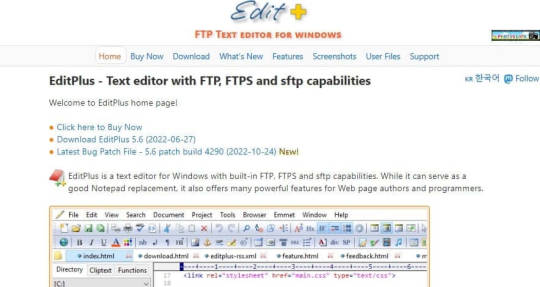
يعد EditPlus محرر نصوص يمكن أن يكون بديلاً جيدًا لبرنامج Notepad. إنه محرر كود مصدر يقدم دعمًا جيدًا لمؤلفي صفحات الويب وكذلك للمبرمجين.
سمات:
- إمكانيات مدمجة لـ FTP و SFTP و FTPS.
- ميزات تسليط الضوء على بناء الجملة القوي للعديد من لغات البرمجة مثل JAVA و PHP وما إلى ذلك.
- ميزة تسليط الضوء على عناوين URL ورسائل البريد الإلكتروني في الملفات النصية العادية.
- ميزات طي الكود على أساس المسافة البادئة عبر الإنترنت.
تفاصيل السعر: 35 دولارًا لترخيص مدى الحياة لمستخدم واحد
12. Visual Studio Code
إذا كنت تبحث عن أفضل محرر أكواد خفيف الوزن ولكنه قوي لنظام التشغيل Windows ، فيمكنك التوقف لإلقاء نظرة على Visual Studio Code. هذا برنامج ترميز عبر الأنظمة الأساسية مجاني يوفر دعمًا مدمجًا للغات برمجة متعددة.
سمات:
- برنامج الترميز عبر الأنظمة الأساسية مجاني.
- دعم التثبيت في الوضع المحمول.
- تمكّن الإضافات أدوات الجهات الخارجية للوظائف الإضافية.
الايجابيات:
- وزن خفيف.
- يعمل على معظم الأجهزة وأنظمة التشغيل المتاحة.
- دعم التحديث المنتظم من المطور.
- يعمل كمحرر للشفرة المصدرية IDE.
سلبيات:
- صعوبة في إدارة المكونات الإضافية للغات برمجة متعددة.
تفاصيل السعر: مجاني
13. EmEditor
EmEditor هو محرر كود لنظام Windows يدعم الملفات الكبيرة جدًا ، ووحدات الماكرو ، و Unicode. علاوة على ذلك ، يتوفر كل من الإصدارين 32 بت و 64 بت من هذا البرنامج. يمكن أن يكون البرنامج أيضًا بديلاً قويًا لمحرر CSV.
سمات:
- العديد من ميزات تحرير النص مثل تمييز بناء الجملة والتعبيرات العادية وتحرير التحديد المتعدد وما إلى ذلك.
- أدوات CSV قوية.
- يمكن بسهولة التعامل مع الملفات الكبيرة حتى 16 تيرابايت.
- واجهة قابلة للتخصيص.
الايجابيات:
- برنامج سريع وخفيف الوزن.
- سهل الاستخدام.
- توسع.
سلبيات:
- ليس حر
تفاصيل السعر: سيكلفك البرنامج 40 دولارًا للحصول على ترخيص لمدة عام واحد مع كل عام لاحق بتكلفة 20 دولارًا. هناك أيضًا اشتراك مدى الحياة يكلف 260 دولارًا.
14. WeBuilder
إذا كنت مطور ويب وتبحث عن محرر كود مصدر الكل في واحد ، فإن WeBuilder هو محرر الكود المناسب لك.
سمات:
- يدعم تحرير التعليمات البرمجية بلغات HTML و CSS و JavaScript وست لغات أخرى.
- تسليط الضوء على بناء الجملة قوي.
- تم تمكين التحرير المباشر على متصفح الويب الخاص بك.
- تدعم الأدوات المضمنة التحقق من صحة الرمز والتنسيق والتنقل وإعادة استخدامه.
- محررات جافا سكريبت و PHP مع ميزة الإكمال التلقائي.
الايجابيات:
- واجهة نظيفة.
- بدء التشغيل السريع.
- دعم يونيكود.
السلبيات: لا يوجد نسخة مجانية متاحة
تفاصيل السعر: ترخيص لمرة واحدة بقيمة 59.95 دولارًا
15. BlueGriffon
BlueGriffon هو برنامج تشفير مفتوح المصدر للكمبيوتر يعمل عبر الأنظمة الأساسية.
سمات:
- إنه محرر Wysiwyg HTML.
- يعمل على أنظمة تشغيل Windows و macOS و Linux.
- تم تمكين تصميم الويب سريع الاستجابة.
- خيارات للسمات الداكنة والفاتحة.
- العديد من الوظائف الإضافية المفيدة مثل Eye-Dropper و Cross-Browsing.
الايجابيات:
- واجهة سهلة.
- العديد من القوالب المضمنة لتصميمات صفحات الويب.
- دعم متعدد المنصات.
سلبيات:
- يفتقر إلى عدد الوظائف الإضافية مقارنة بالمنافسين.
- مكلف نسبيا.
- منحنى التعلم للمبتدئين.
تفاصيل السعر: سيكلفك الترخيص الأساسي 75.00 يورو بالإضافة إلى ضريبة القيمة المضافة داخل الاتحاد الأوروبي وسيكلفك ترخيص EPUB 195.00 يورو بالإضافة إلى ضريبة القيمة المضافة داخل الاتحاد الأوروبي.
16. QOwnNotes
QOwnNotes هو برنامج تشفير مفتوح المصدر مجاني يعمل على منصات متعددة ويهدف إلى استخدامه كتطبيق لتدوين الملاحظات. البرنامج فريد لأنه يوفر أيضًا ميزات التدقيق الإملائي.
سمات:
- يتم تخزين الملاحظات كملفات تخفيض النص العادي.
- مكتوب بلغة C ++
- الوضع المحمول لـ USB-sticks.
- يسمح باستيراد ملفات Joplin و Evernote.
- يدعم المشاركة على OwnCloud و NextCloud.
- يمكن استيراد النصوص الموجودة أو ملفات التخفيضات.
- يعمل على أنظمة تشغيل Windows و macOS و Linux / GNU
- التخزين المحلي للملفات.
الايجابيات:
- يستخدم ذاكرة وقوة معالجة أقل.
- قابلة للتخصيص للغاية وقابلة للكتابة.
- يدعم 60 لغة مختلفة.
السلبيات: لا شيء
تفاصيل السعر: برنامج مجاني ومفتوح المصدر.
17. Standard Notes
Standard Notes هو محرر كود لنظام Windows يسمح لك بإدارة جميع أعمالك من خلال تقديم تسهيلات لتدوين الملاحظات والتحرير. كما يضمن أيضًا إجراء نسخ احتياطي منتظم لبياناتك على خدمات التخزين المختلفة المستندة إلى مجموعة النظراء مثل Google Drive و OneDrive وما إلى ذلك.
سمات:
- تشفير شامل لبيانات المستخدم.
- توثيق ذو عاملين.
- الملاحظات في نص عادي.
- تسهيلات تصدير البيانات بنص عادي أو تنسيقات مشفرة.
تفاصيل السعر: بصرف النظر عن الإصدار المجاني ، هناك إصدار إنتاجي يكلف 26.55 دولارًا سنويًا ونسخة احترافية تكلف 44.55 دولارًا سنويًا.
18. Apache NetBeans
Apache NetBeans ليس فقط محرر نصوص ولكن أيضًا محرر كود مصدر يقدم ميزات تمييز بناء الجملة. إنه أحد أفضل برامج الترميز للكمبيوتر الشخصي. يعمل NetBeans عبر الأنظمة الأساسية ، لذلك لا داعي للقلق بشأن العمل باستخدام نفس الرمز على أنظمة متعددة ذات أنظمة تشغيل مختلفة.
سمات:
- محرر كود قوي.
- تسليط الضوء على شفرة المصدر.
- يتطلب دعم جافا.
- يعمل على منصات متعددة.
- دعم لغات متعددة مثل Java و Javascript و PHP وما إلى ذلك.
The best text editor can have a huge impact on your productivity and workflow. Although there are many text editors available in the market, you should choose a simple and functional code editor for your convenience. The best text editors offer a fast, flexible interface that allows you to be more efficient at writing code, and they offer functionality to help you examine code for mistakes and see where edits need to be made.
For a programmer, a Code Editor or an IDE is the first point of contact with any programming language, making its selection one of the most crucial steps in the journey ahead.
Here are mentioned a lot of IDEs and Code Editors with some of its noteworthy features, along with the features why you should and shouldn’t pick them for your next project.
Anders als üblich wird das Original mit deutschsprachiger Benutzerschnittstelle entwickelt und kann anschließend in andere Sprachen übersetzt werden. Mitwirkung bei der Übersetzung und Weiterentwicklung ist erwünscht. Dieses Projekt kann auch als Grundlage für deine eigene Weiterentwicklungen verwendet werden. #ajakobsche https://www.instagram.com/p/B7jElY5CvVS/?igshid=1h878qhdj2t3k
Visual Studio Code is the most popular code editor available to computer programmers and website developers. Visual Studio was created by Microsoft and is one of their best open-source products available. Visual Studio offers excellent features and third-party extensions that have helped establish Visual Studio Code as the most popular enterprise coding editor.
Need a place to write and run your code? Well, Visual Studio has some splendid features and enough support to warrant a recommendation, so join us on Softlocked and see what this tool is all about!